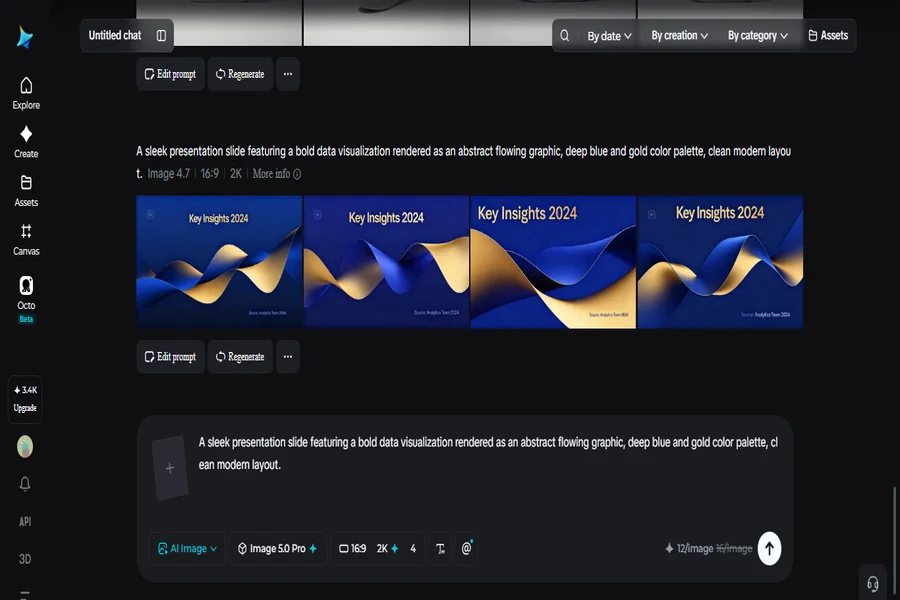
Nobody remembers a bullet point slide. What sticks is the one moment in a deck where the visual actually said something the words couldn’t, a striking image, a clean data visualization, a metaphor rendered in a single frame instead of a paragraph of explanation. Most presentations skip that moment entirely, defaulting to stock photos or plain charts because building something better used to take real design skill. An AI image generator closes that gap fast, and Dreamina, running on its newest model Seedream 5.0 Pro, makes genuinely creative presentation visuals realistic even without a design background.
Why most presentation visuals fall flat
The default slide visual tends to be a generic stock photo loosely related to the topic, or a plain bar chart that technically shows the data without making anyone care about it. Neither communicates much beyond “here’s a picture” or “here are some numbers.” A visual earns its place in a presentation when it makes an idea easier to grasp or more memorable to recall later, and that bar is higher than most default choices manage to clear.
What separates a forgettable slide from a memorable one
A few qualities tend to show up in presentation visuals that people remember afterward:
-
A visual metaphor that makes an abstract idea feel concrete
-
Data rendered with real visual interest, not just a default chart style
-
A consistent design language that carries across every slide
None of these require abandoning clarity for style. The best presentation visuals still communicate the point instantly, just more memorably than a stock photo ever could.
Meet Dreamina’s Seedream 5.0 Pro
Seedream 5.0 Pro is particularly well suited to presentation work because of its ability to transform information into genuinely professional visual expression rather than a generic illustration. Its layer separation feature helps turn data, concepts, and report content into clearer visual language, which matters enormously when a slide needs to convey something dense without overwhelming the audience. Point selection, lasso tools, and sketch guidance let you refine specific elements of a slide visual after the fact, while native text support across 14 languages helps with any in-slide labeling or captions. Add 2K output for crisp detail even when a deck gets projected large, and built-in research keeping visual metaphors current, and you’ve got a tool built for elevating presentation work well beyond the default.
Turning a slide concept into a finished visual
This is where the deck starts to feel designed rather than assembled. Here’s how it plays out inside Dreamina.
Step 1: Write a text prompt and/or add reference image
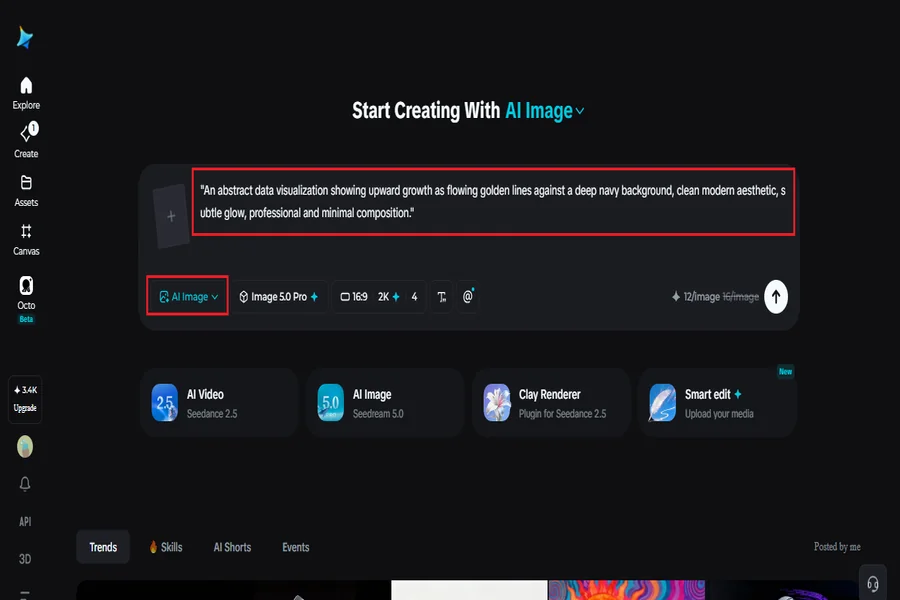
Head to Dreamina and describe the idea your slide needs to communicate, along with the visual style and mood you’re picturing. Upload a reference image if you already have a rough sketch or a slide you want to match stylistically.
A sample prompt might read: “An abstract data visualization showing upward growth as flowing golden lines against a deep navy background, clean modern aesthetic, subtle glow, professional and minimal composition.”
Step 2: Adjust parameters and generate
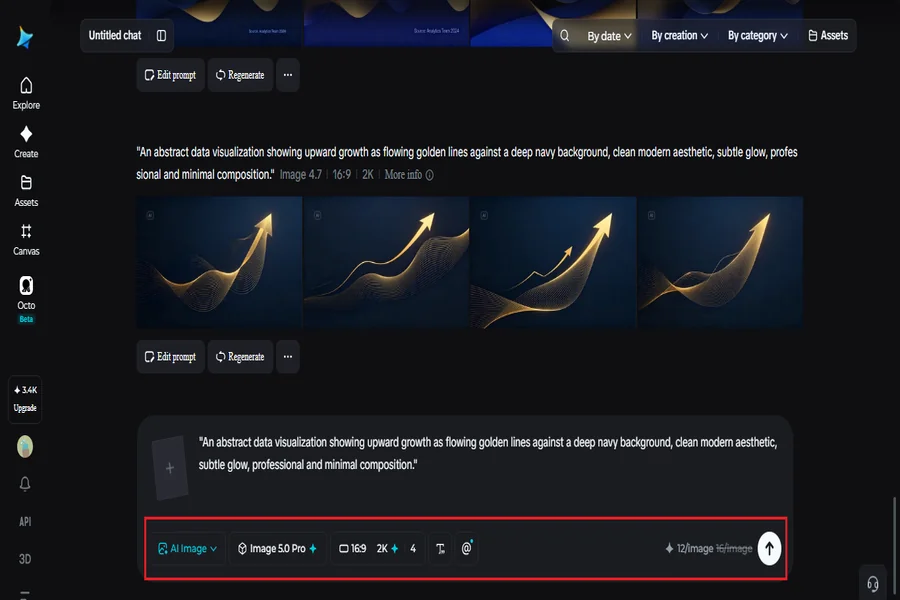
Select Image 5.0 Pro by Seedream 5.0 Pro as your model. Set aspect ratio and size to match your slide dimensions, then pick resolution, 1K while testing a concept, 2K once it’s ready for the final deck. Click Dreamina’s icon once it’s set, and let it generate.
Step 3: Customize and download
A presentation visual usually needs a small refinement before it fits cleanly into a slide layout. Use inpaint, expand, remove, and retouch to adjust composition so there’s room for text, or fix a color that clashes with the rest of the deck. Once it fits, hit “Download” and drop it straight into your slide.
Keeping visuals consistent across an entire deck
A single striking slide loses its impact if every other slide looks like it came from somewhere else. A few habits help maintain consistency:
-
Reuse the same color palette and visual style across every generated image
-
Keep a consistent level of visual complexity, not one minimal slide next to one busy one
-
Review the full deck as a sequence before finalizing any single slide
This keeps a deck feeling like one cohesive presentation instead of a collection of unrelated visuals.
Mistakes that undercut otherwise strong presentation visuals
A handful of habits tend to weaken this kind of work specifically. Prioritizing style over clarity leaves an audience with something pretty but confusing, since a visual that requires explanation has already failed its main job. Overloading a single slide with too much visual information competes with whatever the presenter is saying out loud. Ignoring brand or deck-wide color consistency creates a scattered feel, even when each individual slide looks fine on its own.
Where creative presentation visuals earn their place
This approach tends to matter most in a specific set of situations. Investor pitches benefit heavily, since a striking visual can carry weight a spreadsheet never will in the room. Conference talks follow a similar pattern, needing visuals memorable enough to outlast the words spoken. Internal reports get real value here too, turning dense data into something a room full of people will engage with instead of skim past.
Wrapping up
A presentation was never really about how many slides it had, it’s about which single visual people still remember afterward. With Dreamina and Seedream 5.0 Pro, building that kind of visual takes a fraction of the design effort it used to, giving even the most data-heavy deck a real shot at being memorable.